Welcome

Showing posts with label Other Tricks. Show all posts

How to block ads on your Android

Posted By: Unknown - Saturday, January 03, 2015


Ads and pop-up windows on your computer are one of the most annoying things in the world, and that's why practically everyone has a pop-up and ad blocker installed on their desktop. But for some strange reason not everyone bothers to do the same thing for their Android smartphone . Today, we're going to show you how to block ads, including pop-ups, on your Android device and save some of your precious data at the same time. 


Did you know that all those ads (static and video) actually use up tons of your data allowance? Just think about it. If you load a web page and there's a bunch of video ads playing on the side the entire time you're on the site, that data flow has to come from somewhere, and that somewhere is your data plan. So installing an ad blocker on your Android can not only save your sanity but also your hip pocket.


AndroidPIT Chrome Settings


Make sure your browser has popups blocked, and turn Reduce 
Data Usage ''On''.


For starters, you can use a browser like Chrome that automatically blocks a lot of pop-ups. That's going to be a major boost to your sanity levels. You can also go into your Chrome Settings > Bandwidth Management > Reduce Data Usage to save even more of your precious bits.


AndroidPIT Adblock Plus Install


Hit the APK link on your Android and install Adblock Plus.


Icon
Chrome Browser - GoogleINSTALL


I'm rooted, so I used Adblock Plus. Simply hit the link on your Android, download the Adblock Plus APK (you'll need to enable Unknown Sources in your Security Settings first) and launch it. If you're rooted, Adblock Plus will ask you for Superuser permission. Grant it and you're done. You can then choose a subscription – EasyList is fine – and decide if you want all ads blocked or just ''inappropriate'' ones. It's up to you if you can handle some advertising or want everything blocked. Inappropriate ads include video ads and those with sounds etc.


AndroidPIT Adblock Plus Settings


Pick your subscription, uncheck Acceptable Ads and ditch that 
icon.


To hide the icon in your notification drawer you can tick the box but this will only make the notification icon invisible. If you want it out of your notification bar entirely you'll need to go to your device's Settings > Apps > Adblock Plus and uncheck the Show Notifications box.


AndroidPIT Adblock Plus Proxy


You'll simply have to configure your own proxy settings if you're 
not rooted. 


If you're not rooted, don't despair. You simply need to do a little more leg work with your proxy settings. Just go to your Settings and select Wi-Fi, long press the connection you're on (you'll obviously need to do this for all of the Wi-Fi networks you regularly log into) and select Modify Network. From here, go down to Show Advanced Options and switch the Proxy Settings to Manual (it'll be set automatically to None). This will bring up further options: you simply need to change the entry in the Proxy Hostname field to localhost and the Proxy Port to whatever number Adblock Plus has told you to change it to. For me it was 2020. You don't need to add any exceptions. Now, you can set your notification options as above and start launching ad-heavy websites as much as you like. Instead of seeing all the banner and sidebar ads you'll just get white space – it may seem a little weird at first but that nice ''breathing space'' is actually kind of nice once you get used to it. Not to mention the fact that you won't be seeing all sorts of flashy, noisy and moving image ads all of the time. Some sites, like Forbes, will still show their initial pop-up advertisement, but there will be nothing in it. Some of these are unavoidable. Combined with Chrome's pop-up blocker (plenty of other browsers have similar functions), Adblock Plus will save your sanity, your data and your impulse to consume.


Watch the video to Learn More....


HOW TO CHANGE WALLPAPERS IN ANDROID AUTOMATICALLY

Posted By: Unknown - Tuesday, December 23, 2014


Hello friends, I hope you already know the wallpaper changing feature in WINDOWS 7 & WINDOWS 8. I really Like this feature more than my Facebook status. Recently I buy a new tablet with android 4.0 and i was missing that wallpaper changing feature in it. So I decided to find something for me to make it possible to change wallpaper automatically on my Android TABLET and in the last i come to know there is an APP available to perform this task. So now I am going to share it with you, here are some steps just read and follow them carefully..


STEP 1.


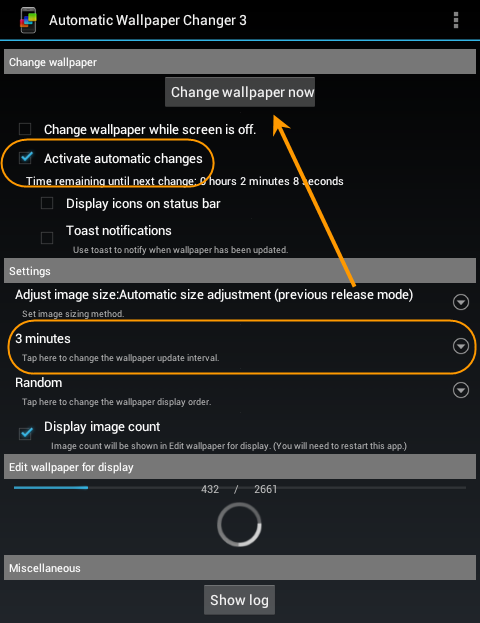
First of all download this app on your android phone or tablet from android market – Automatic Wallpaper Changer 3


STEP 2.

Now install it on your phone or tablet


STEP 3.

Open the app and select the wallpaper to play in slideshow.


[Note:- You can also customize wallpaper changing time according to your wish.]


” ENJOY & WAIT FOR NEXT ” 


Watch the video to Learn More....


HOW TO REMOVE PHOTO BACKGROUND USING CLIPPING MAGIC

Posted By: Unknown - Thursday, May 22, 2014


Hi friends, Today I am going to share how to remove any photo background easily. If you don’t know how to use photoshop then you can do it without Photoshop or any other software. You have  no need to install any software on your pc to do this task. You just need internet connection on your pc. If you have goodinternet connection then just read and follow below steps and if you have any problem with any of content on our blog then feel free to comment below. We’ll try our best to help you..


STEP 1:-


First of all visit to this link 


STEP 2:-


Now upload any pic and start editing. User Interface of this website is very friendly so I think there is no need to explain how to do this. You can do it very easily.


 Watch the video to know more


HOW TO CONVERT YOUR TEXT TO VOICE ONLINE

Posted By: Unknown - Thursday, May 22, 2014


Hello Friends, lets do something funny. Today i will tell you a website to convert your text into voice online and also i’ll discuss some Steps to perform this task. You can use this trick to turn your text into speech and also you can learn how to pronounce a difficult word, so it is complete useful for you. Here are some easy steps, have a look on them.


STEP 1.


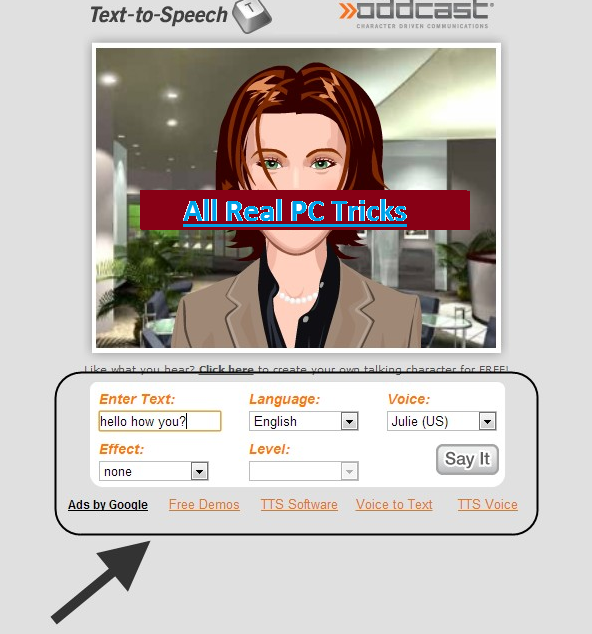
First of all visit to this website, you’ll see below type of screen.


STEP 2. 


Now here, just enter your text or complete sentence. and click on SAY IT


  • You can change speaking language.
  • You can change speaking voice.
  • You can change speaking effect & its level.


  • ” ENJOY & WAIT FOR NEXT “


    Watch the video to Learn More....


    How To Make Symbols With Keyboard

    Posted By: Unknown - Wednesday, April 23, 2014
    As Per Your Request Today I Post " How To Make Symbols With Keyboard ". Try them in comments.


    Alt + 0153..... ™... trademark symbol
    Alt + 0169.... ©.... copyright symbol
    Alt + 0174..... ®....registered trademark symbol
    Alt + 0176 ...°......degre­e symbol
    Alt + 0177 ...±....plus-or­-minus sign
    Alt + 0182 ...¶.....paragraph mark
    Alt + 0190 ...¾....fractio­n, three-fourths
    Alt + 0215 ....×.....multi­plication sign
    Alt + 0162...¢....the cent sign
    Alt + 0161.....¡..... .upside down exclamation point
    Alt + 0191.....¿..... ­upside down question mark
    Alt + 1...........smiley face
    Alt + 2 ......☻.....bla­ck smiley face
    Alt + 15.....☼.....su­n
    Alt + 12......♀.....female sign
    Alt + 11.....♂......m­ale sign
    Alt + 6.......♠.....s­pade
    Alt + 5.......♣...... ­Club
    Alt + 3............. ­Heart
    Alt + 4.......♦...... ­Diamond
    Alt + 13......♪.....e­ighth note
    Alt + 14......♫...... ­beamed eighth note
    Alt + 8721.... ∑.... N-ary summation (auto sum)
    Alt + 251.....√.....s­quare root check mark
    Alt + 8236.....∞..... ­infinity
    Alt + 24.......↑..... ­up arrow
    Alt + 25......↓...... ­down arrow
    Alt + 26.....→.....ri­ght arrow
    Alt + 27......←.....l­eft arrow
    Alt + 18.....↕......u­p/down arrow
    Alt + 29......↔... left right arrow


    Watch the video to learn more


    How To Use Google Chrome & Mozilla Firefox as a Calculator

    Posted By: Unknown - Sunday, April 20, 2014

    A lot of people use Google Chrome every day for browsing , Downloading etc.. But still, there are a lot of things in Google Chrome that still remain unknown for many users. You won’t find these things in official pages or theGoogle Chrome  guides. But these tricks can make a lot of interesting things with your Google Chrome. If you’re interested, it’s high time to get started!


    How to Do This ???


    1) Open Chrome or Firefox.


    2) Click CTRL+SHIFT+J Or F12 for chrome & Click F12 for Firefox.


    3) Select CONSOLE Tab.


    4) Now Calculate Whatever You Want Inside Console.


    ----------======== Don't forget to like and share ========----------


    Watch the Video to learn more


    Copyright © 2014 ALL REAL PC TRICKS™

    Designed by ALL REAL PC TRICKS